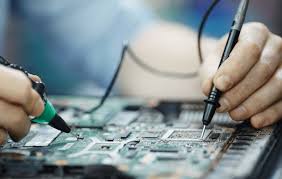

Getting good electronics item images can seem tricky, especially when you’re just starting out. Lots of people find it hard to make their gadgets look appealing and clear. But don’t worry!
We’ll walk through this step-by-step. This guide will make it easy for you. We’ll show you how to capture stunning pictures of your electronics.
Key Takeaways
- Learn simple lighting techniques for electronics.
- Discover easy ways to set up a background for product shots.
- Understand how to use your phone or camera effectively.
- Find out how to edit images to make them look professional.
- Get tips for showing off different types of electronic devices.
Why Clear Electronics Item Images Matter
Making your electronics look good in photos is super important. People buy what they see. If your pictures are fuzzy or dark, potential buyers might just scroll past.
Clear, bright images help people trust what you’re selling. They can see the details, like ports, buttons, and the overall condition. This helps them decide if the item is right for them.
Good photos can make a big difference in how many people click on your listing. They also help people feel confident about making a purchase from you.
Think about buying something online. You look at the pictures first, right? If they’re not good, you might think the item isn’t great, or maybe the seller isn’t very professional.
For electronics item images, showing off the design and any special features is key. People want to see if it’s sleek, if it has a nice screen, or if the build quality looks good. This is true whether you’re selling a new gadget or a used one.
High-quality visuals build that trust.
This guide will break down everything you need to know. We’ll cover lighting, backgrounds, camera settings, and editing. You don’t need fancy equipment to start.
We’ll focus on simple methods that give you amazing results. Get ready to make your electronics shine!
Setting Up Your Photo Scene
The space where you take your pictures is a big deal. You want a clean area that doesn’t distract from the electronics item itself. A cluttered background makes the photo look messy.
For most electronics, a plain background works best. This helps the item stand out. Think about colors too.
A white or light gray background is often ideal because it’s neutral and shows colors accurately.
You can create a simple backdrop using poster board, a large piece of plain fabric, or even a clean wall. If you want a seamless look, where the background curves up behind the item, you can bend a piece of poster board. This avoids hard lines.
For larger items, you might need more space. Try to find a spot with plenty of natural light. Avoid areas where shadows might fall unevenly on the product.
Choosing the Right Background
A simple, uncluttered background is your best friend for product photography. It ensures that your electronics item is the star of the show. Avoid busy patterns or bright colors that can pull attention away from the product.
Neutral tones like white, light gray, or a soft beige are excellent choices. They allow the details and colors of the electronics to pop without competition.
- White poster board or large paper: This is a classic for a reason. It’s cheap, easy to find, and gives a clean, bright look. You can tape it to a wall or use a stand to create a curved background effect. This helps avoid harsh shadows where the wall meets the surface.
- Plain fabric: A large piece of white or light gray cotton or linen can work well. Make sure it’s ironed smooth to avoid wrinkles. Fabric can sometimes create softer shadows than paper, which can be a nice effect.
- A clean, light-colored wall: If you have a wall that’s painted a neutral color and is free of marks, it can serve as a great background. Ensure the lighting is even across the wall.
When you use a white poster board, you can bend it to create a seamless curve. This means the background gently slopes up behind your item. This gives a professional, studio look.
It also helps manage shadows, making them softer. You can find poster board at most craft or office supply stores. It’s a simple tool that makes a big visual impact on your electronics item images.
Creating a Light Tent
A light tent is a fantastic way to get soft, even lighting for your electronics. You can buy one, or you can easily make one yourself. A DIY light tent uses a cardboard box and some white fabric or paper.
The idea is to diffuse the light from your sources so it wraps around the product. This reduces harsh shadows and highlights.
To make a basic light tent, get a medium-sized cardboard box. Cut out large windows on three sides of the box. Cover these windows with thin white fabric, like a sheer curtain or tracing paper.
You can attach the fabric with tape. Place your item inside the box. Then, position lights outside the fabric-covered windows.
This softens the light beautifully.
- Purpose of diffusion: Light diffusion is crucial. It spreads light out, making it less intense and more gentle. This is key for shiny surfaces found on many electronics, like phone screens or metal casings. Without diffusion, you get bright, distracting glare.
- DIY materials: You can use a medium to large cardboard box. For diffusion material, tracing paper, thin white cloth, or even parchment paper can work. Tape is essential for holding it all together.
- Light placement: Position your lights (desk lamps work well) outside the box, shining onto the diffusion material. You’ll want at least two lights, one on each side. Sometimes, a third light from the top can help fill in any remaining shadows.
Using a light tent results in professional-looking photos. The light is soft, and the shadows are subtle. This makes the textures and details of the electronics much clearer.
It’s a simple setup that significantly improves the quality of your electronics item images. Many professional photographers use this technique.
Mastering Lighting Techniques
Lighting is arguably the most important element in product photography. For electronics, you want to show off their shape and features without harsh glare. Natural light is often the best starting point.
Position your item near a window, but avoid direct sunlight, which can be too intense.
If natural light isn’t available or consistent, artificial lights are your next best option. Desk lamps can work, especially when used with a light tent or diffusion material. The goal is to create soft, even illumination.
Avoid using the flash on your camera or phone, as it usually creates unflattering shadows and highlights.
Using Natural Light
Natural light, especially from a window, is often ideal for photographing electronics. It provides a soft, diffused glow that can make products look very appealing. The best time to shoot is usually during the day, but avoid direct sunlight.
Direct sun can create harsh shadows and bright spots that obscure details. Overcast days are often perfect because the clouds act as a natural diffuser.
- Window placement: Position your item so it’s lit by the window. The light should fall on it from the side, not directly from the front or back. This creates depth and shows texture well.
- Avoiding direct sun: If the sun is too bright, use a sheer curtain or a piece of white paper to soften it. You want the light to be gentle. This prevents blown-out highlights on shiny surfaces.
- White balance: Natural light can sometimes have a color cast (e.g., bluish in the morning, warmer in the afternoon). Most cameras and phones have an auto white balance setting that works well. If not, you might need to adjust it in editing to make the colors look true.
Experiment with positioning your item relative to the window. Try it directly facing the light, to the side, or with the light coming from behind. Each position will create a different mood and highlight different features.
For electronics item images, side lighting is often a great starting point. It defines edges and shows form nicely.
Artificial Lighting Solutions
When natural light isn’t an option, artificial lights are your go-to. You don’t need expensive studio lights to get great results. Standard desk lamps can be very effective.
The key is how you use them. It’s often better to use two or more lamps to get balanced lighting. Place them on either side of your subject to avoid casting harsh shadows.
Using diffusion with artificial lights is just as important as with natural light. You can drape thin white fabric or paper over your lamps to soften the light. This is how you create a DIY light tent.
This process turns harsh, direct light into a gentle glow that wraps around the product. It reduces glare on screens and metal parts.
| Lighting Method | Pros | Cons |
|---|---|---|
| Natural Light (Window) | Free, soft, beautiful quality | Inconsistent, depends on time of day/weather |
| Desk Lamps (without diffusion) | Readily available, controllable | Can be harsh, creates strong shadows/glare |
| Desk Lamps (with diffusion/Light Tent) | Soft, even light, reduces glare, controllable | Requires setup, may need multiple lamps |
| Camera Flash | Always available | Usually creates harsh, flat lighting and red-eye |
For excellent electronics item images, artificial lighting with diffusion is a reliable choice. It gives you control over the light and ensures consistency. You can achieve a professional look with simple tools.
Remember to experiment with the angle and intensity of your lights.
Camera Settings and Techniques
You don’t need a professional camera to take great photos. Most modern smartphones have excellent cameras. The trick is to know how to use them effectively.
We’ll cover some basic settings and techniques that can help improve your shots. Simple adjustments can make a big difference.
One of the most common mistakes beginners make is relying on auto mode for everything. While auto mode is convenient, it doesn’t always produce the best results for product photography. Learning a few manual settings can give you more control.
This is especially true for getting the right focus and exposure.
Using Your Smartphone Camera
Smartphones are incredibly powerful tools for photography today. They offer high-resolution sensors and advanced processing. To get the best electronics item images with your phone, follow these tips.
First, always clean your lens. A smudged lens is the number one culprit for blurry photos. Use a soft microfiber cloth.
- Tap to focus: Your phone’s camera will try to guess where to focus. But for product shots, you want to be in control. Tap on the screen where the main part of your electronic device is. This tells the camera what’s most important.
- Adjust exposure: After tapping to focus, you’ll often see a slider (usually a sun icon) appear. Drag this slider up or down to make the picture brighter or darker. For electronics, you generally want it well-lit, but not blown out (too bright).
- Use natural light when possible: As mentioned, try to shoot near a window. Avoid using the built-in flash if you can. It tends to create harsh shadows and flatten the image.
- Steady your phone: Hold your phone with both hands to keep it steady. If you have a small tripod for your phone, even better. This prevents blurry shots, especially in lower light.
Many smartphone camera apps have a “Pro” or “Manual” mode. This lets you adjust settings like ISO, shutter speed, and white balance. While you don’t need to master all of these immediately, playing with them can be helpful.
For example, lowering the ISO can reduce digital noise (graininess).
Understanding Focus and Exposure
Focus and exposure are the two pillars of a well-exposed photograph. Focus determines what part of the image is sharp and clear. Exposure controls how light or dark the overall image is.
For electronics item images, getting both right is crucial.
Focusing is straightforward with most modern cameras and phones. As mentioned, tap on the part of the item you want to be sharpest. This is typically the main body or a key feature like a logo or screen.
If the camera struggles to focus, try moving it slightly closer or farther away. Sometimes, a very close focus isn’t possible with some lenses.
Exposure is about the balance of light. Too little light, and the image is too dark. Too much light, and it’s too bright, losing detail in highlights.
This is where adjusting the exposure slider on your phone or using manual controls on a camera comes in. For electronics, you want enough light to see all the details, but not so much that shiny surfaces become pure white blobs.
- Depth of Field: This refers to how much of the image is in focus from front to back. A shallow depth of field blurs the background, making your subject pop. A deep depth of field keeps almost everything in focus. For most electronics shots, you want a reasonably deep depth of field so all parts of the device are clear.
- White Balance: This corrects the color of the light source. Different lights (sunlight, tungsten bulbs, fluorescent tubes) have different color temperatures. White balance ensures that whites appear white in your photo, and other colors are rendered accurately. If your photos look too blue or too yellow, your white balance is likely off.
- ISO: This setting controls the camera’s sensitivity to light. A lower ISO (e.g., 100) means less sensitivity and less digital noise, resulting in cleaner images. A higher ISO makes the camera more sensitive, useful in low light, but it introduces more noise. For good lighting conditions, always aim for the lowest possible ISO.
Getting focus and exposure right is a skill that improves with practice. Don’t be afraid to take multiple shots. Compare them side-by-side to see what works best for your specific electronic item.
Editing Your Electronics Item Images
Once you’ve taken your photos, the editing process can elevate them to a professional level. Editing is not about changing the item itself, but about enhancing what’s already there. You want to make the colors accurate, the brightness pleasing, and remove any minor imperfections.
Simple edits can make a huge difference in the appeal of your electronics item images.
There are many editing tools available, from free mobile apps to more advanced desktop software. For beginners, focusing on a few key adjustments will yield the best results. These include cropping, adjusting brightness and contrast, and correcting colors.
Basic Photo Editing Tools
Most smartphones come with built-in photo editing capabilities. These are often sufficient for improving product photos. Apps like Snapseed, Adobe Lightroom Mobile (free version available), or even the default photo editors on iOS and Android are excellent starting points.
They offer user-friendly interfaces and powerful tools.
- Cropping and Straightening: This is one of the most useful tools. You can crop your image to remove distracting background elements or to improve the composition. Straightening your photo ensures that horizons or edges are perfectly level, giving a more professional look.
- Brightness and Contrast: Adjusting brightness can fix photos that are too dark or too light. Contrast adds definition by increasing the difference between light and dark areas. Use these sparingly to avoid an unnatural look.
- Color Correction (White Balance): If your photo has a color cast (e.g., too blue or too yellow), you can use the white balance tool to fix it. This ensures that colors are represented accurately.
- Sharpening: A subtle sharpening effect can make details appear crisper. Don’t overdo it, as too much sharpening can create an artificial halo effect.
For electronics item images, color accuracy is very important. Ensure the colors of the device look exactly as they do in real life. This builds trust with buyers.
If a red device looks pink in the photo, it can lead to disappointment.
Removing Blemishes and Glare
Sometimes, even with the best setup, you might have small dust specks, fingerprints, or unwanted reflections in your photos. Editing tools can help you clean these up. Many photo editing apps have a “healing brush” or “spot removal” tool.
This allows you to simply brush over a small imperfection, and the software will
Glare from screens or shiny metal parts can be a challenge. While good lighting and a light tent help minimize it during shooting, some glare might remain. In editing, you can sometimes reduce the intensity of specific bright spots.
However, significant glare removal is difficult. It’s often best to get the lighting right from the start.
Here’s a practical approach to cleaning up your images:
- Start with cropping and straightening. Get the composition right first.
- Adjust overall brightness and contrast. Make sure the image is well-lit and has good definition.
- Correct the white balance if needed. Ensure colors are true to life.
- Use the spot removal tool for any dust, small smudges, or stray hairs. Be gentle and only fix what’s necessary.
- Apply a subtle sharpening effect at the very end to enhance details.
A clean, well-edited photo of your electronics will look much more appealing. It shows you’ve put care into presenting your item. This attention to detail is key for effective electronics item images.
Showcasing Different Types of Electronics
Different electronic devices have unique features that need to be highlighted. A smartphone needs different treatment than a large television or a set of headphones. Understanding how to best present each type will improve your photography.
Think about what makes each item special and how to show that in a picture.
For smaller gadgets like earbuds or smartwatches, close-up shots are often best. This allows viewers to see fine details. For larger items like laptops or monitors, you’ll want to show the scale and design.
Always consider the context of how the item is used.
Smartphones and Tablets
Smartphones and tablets have screens that are often the main focus. When photographing them, consider showing a clean, attractive wallpaper or a simple app icon. Make sure the screen is bright enough to be visible but not so bright that it washes out.
- Show the screen: Turn the device on and display something visually appealing. A simple lock screen or a colorful app icon works well. Ensure the screen is clean and free of fingerprints.
- Angles matter: Show the device from a few different angles. A front view, a side view showing the thickness and buttons, and perhaps a back view to show the camera module or logo.
- Contextual shots: You can show a smartphone resting on a desk next to a laptop, or a tablet being held in a hand. This gives a sense of scale and how it’s used in everyday life.
- Highlight features: If the phone has a unique camera setup or a distinctive design element, try to capture it clearly. Sometimes, a macro shot can show off the texture of the material.
For these devices, a clean background is paramount. You don’t want anything competing with the sleek design of the smartphone or tablet. Good lighting will also ensure the screen displays colors accurately in your electronics item images.
Laptops, Computers, and Accessories
Laptops and desktop computers are larger items. You’ll want to showcase their overall design, screen size, and keyboard layout. Accessories like keyboards, mice, and webcams need clear shots that highlight their features and ergonomics.
When photographing laptops, show them open and closed. An open laptop shot can feature the screen and keyboard. A closed shot highlights the slim profile and branding.
For desktops, focus on the tower unit, showing its ports and vents. If you’re selling a monitor, ensure the screen is clean and well-lit, perhaps showing a vibrant image.
- Overall view: Capture the entire device. For laptops, show it open from a slightly elevated angle. For desktops, show the main tower.
- Detail shots: Focus on important areas like the keyboard, trackpad, ports, or branding. These details help buyers understand the product’s features.
- Show it in use (optional): A laptop on a clean desk, or a mouse next to a keyboard, can provide context. However, keep the focus on the product itself.
- Lighting is key: Ensure the screen of laptops and monitors is lit evenly and doesn’t have glare. Use diffusion to soften reflections.
Accessories like mice and keyboards should be photographed clearly to show button layout, ergonomic design, and any special features like wireless connectivity or backlighting. High-quality electronics item images for these products help buyers visualize them on their own desks.
Audio Equipment Headphones Speakers
Audio equipment like headphones and speakers often has a distinct design aesthetic. For headphones, show them from the side to highlight the earcups and headband. Close-ups can show the materials and any branding.
For speakers, showcase their size, shape, and driver configuration.
- Headphones: Photograph them from various angles. Show the earcup detail, the connection cable, and the adjustable headband. If they are foldable, show them in both folded and unfolded states.
- Speakers: For bookshelf speakers, show them front-on and perhaps slightly from the side to reveal depth. For larger floor-standing speakers, you might need to capture them in a room setting to give a sense of scale.
- Show connectivity: If there are ports for cables or Bluetooth indicators, try to photograph these clearly.
- Material texture: Many audio devices use premium materials. Try to capture the texture and finish of leather, metal, or wood elements.
The goal is to make the buyer imagine the sound quality through the visual appeal. Good electronics item images for audio gear combine aesthetic shots with clear views of essential features.
Common Myths Debunked
Myth 1: You need expensive professional cameras to take good product photos.
This is not true. While professional cameras offer more control, most modern smartphones are capable of capturing excellent images for online listings or small businesses. With good lighting, a steady hand, and a clean setup, you can achieve results that look very professional.
The key is to focus on lighting, composition, and editing rather than solely on the camera equipment.
Myth 2: Product photos need to be taken in a studio with perfect lighting.
While a studio offers controlled conditions, it’s not essential. A well-lit area near a window using natural light can be just as effective. Creating a DIY light tent with simple materials can also provide soft, even lighting.
The goal is diffusion and avoiding harsh shadows, which can be achieved with everyday items.
Myth 3: Editing photos makes them look fake.
Editing is about enhancement, not fabrication. Minor adjustments to brightness, contrast, and color can make an image look its best. It’s like putting on makeup; it enhances natural features.
Over-editing can look fake, but subtle corrections help achieve a polished and accurate representation of the product. For electronics item images, color accuracy is especially important.
Myth 4: You must be a professional photographer to get good shots.
Photography skills can be learned. By following simple guides and practicing, anyone can improve their product photography. Understanding basic principles like lighting, focus, and composition is more important than innate talent.
Consistent practice with your camera and subject will lead to better results.
Frequently Asked Questions
Question: What is the best time of day to take photos using natural light?
Answer: The best time is usually during the day, but avoid direct, harsh sunlight. Overcast days offer soft, diffused light. If it’s sunny, shoot a few hours after sunrise or before sunset, or use a sheer curtain to soften the light.
Question: How do I prevent glare on shiny electronics?
Answer: Use a light tent or diffuse your light sources. Position lights so they don’t shine directly onto shiny surfaces. Try angling the item slightly.
Sometimes, a bit of careful editing can reduce minor glare.
Question: Can I use my phone’s built-in flash?
Answer: It’s generally best to avoid using your phone’s built-in flash for product photography. It creates harsh shadows and can make the subject look flat. It’s better to use natural light or external artificial lights with diffusion.
Question: How many photos should I take of one electronic item?
Answer: Aim for variety. Take several shots from different angles: front, back, sides, close-ups of important features. Showing the item from multiple perspectives helps buyers get a complete view.
Question: Should I show the electronics item in its original packaging?
Answer: If the packaging is clean and presentable, yes. It can add value, especially for new items. Show both the item itself and the packaging in separate shots or together, depending on what looks best.
Wrap Up
Creating great electronics item images is achievable for anyone. Focus on simple lighting, clean backgrounds, and clear focus. Learn basic editing to enhance your shots.
Show your electronics from all angles. Your effort will make your items look more appealing and trustworthy to potential buyers.